
Alerts
When a monitor fires, it raises an alert. Alerts land in the inbox, can be acknowledged, and can be handed straight to the agent for investigation.
Find them under Alerts (the top-nav bell shows a count of unacknowledged alerts).
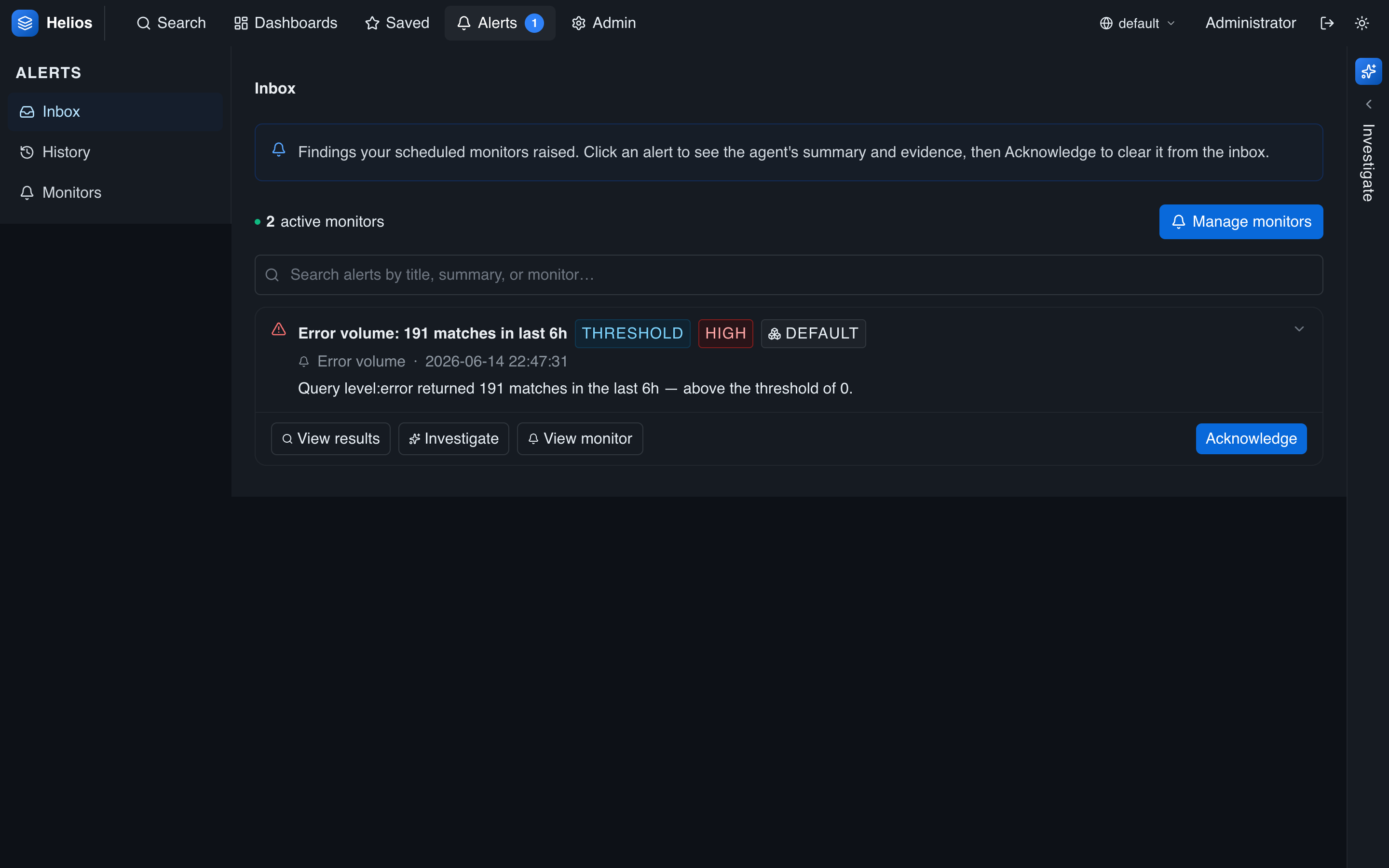
Inbox and history
- Inbox — unacknowledged alerts only; your live worklist.
- History — all alerts, acknowledged or not (a recent window).
Filter either by text, or by a specific monitor (the monitor list links here).
Reading an alert
Each alert carries:
- Severity —
high,medium, orlow(color-coded). - Title and summary — what happened.
- Evidence — the supporting data: for a threshold monitor, the count, window, and threshold; for an AI monitor, the agent's reasoning.
- Monitor and environment it came from.
For an AI monitor, the alert links to the conversation trace of the run that raised it, so you can see exactly how the agent reached its conclusion.
Acknowledging
Click acknowledge to clear an alert. For a shared (public) alert this is a team action — acknowledging removes it from everyone's inbox, so the team doesn't double-respond. Acknowledged alerts remain visible in history.
Investigating
Click investigate to open the agent seeded with the alert's context. The agent picks up the query, time window, and evidence and starts digging — turning "something fired" into "here's what's happening" without retyping anything.
In-app notifications
When an alert fires while you're in the app, a toast notification appears (with an optional sound). The unacknowledged-count badge in the top nav updates live. For delivery to outside systems (Slack, a webhook), see Notifications & webhooks.